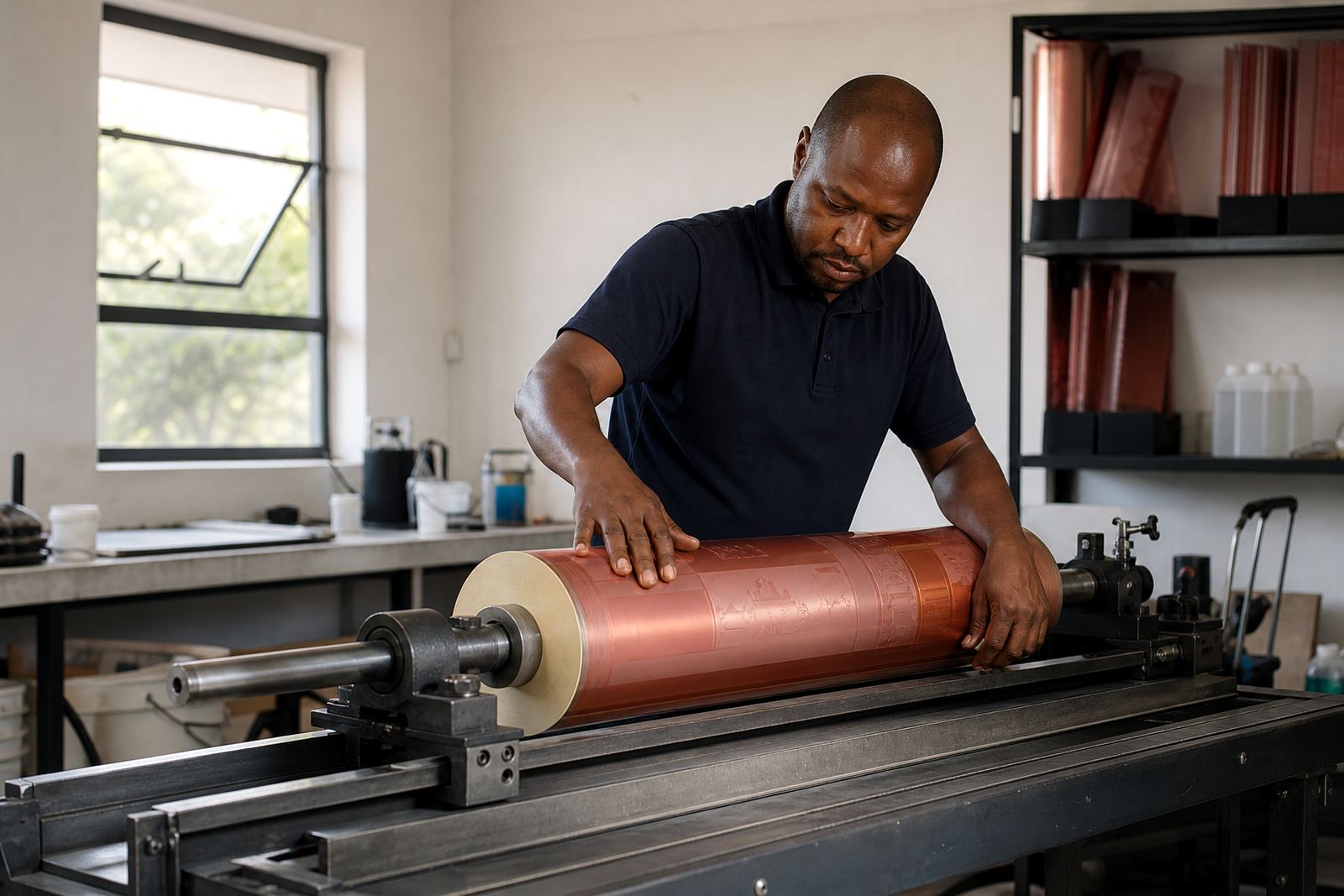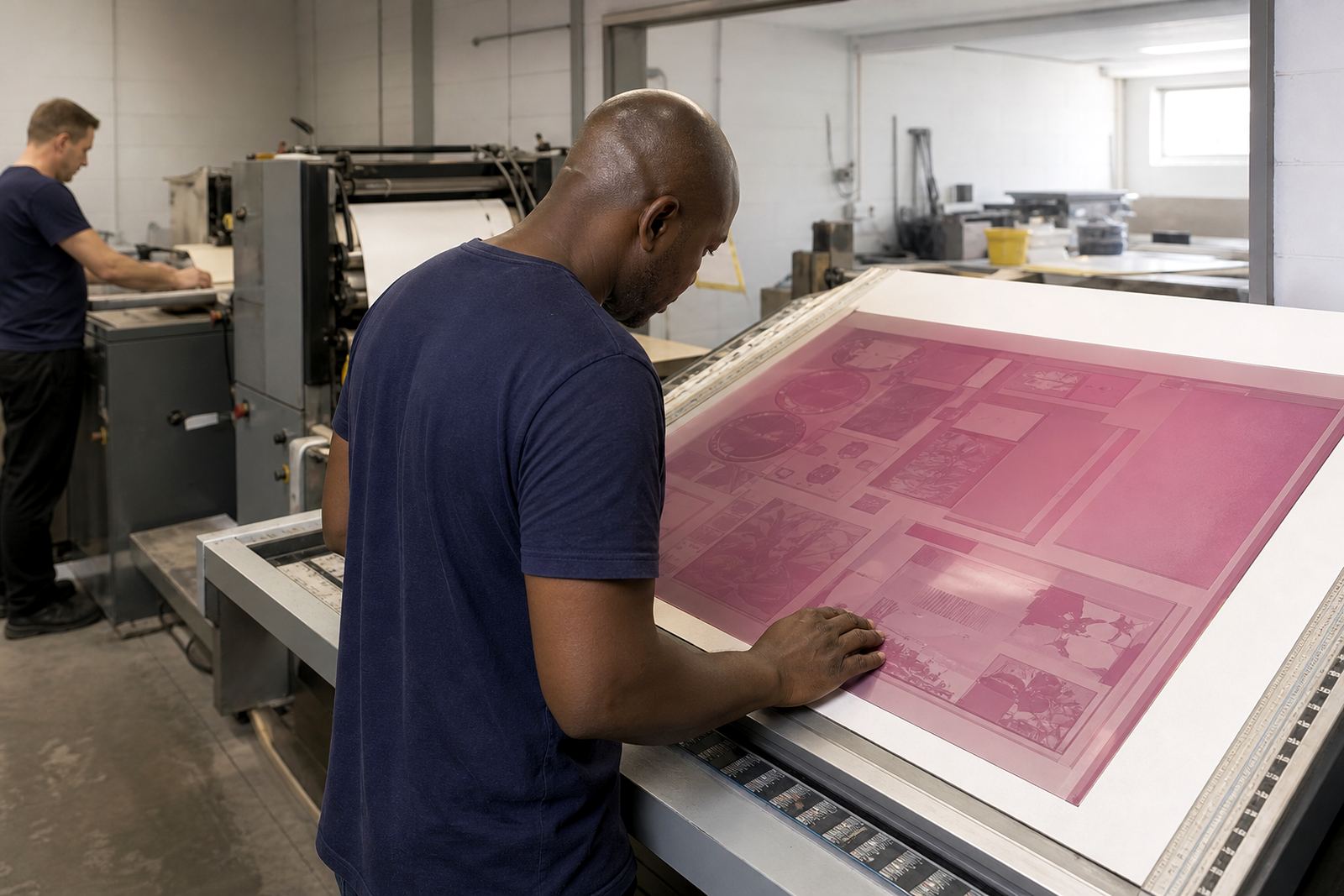

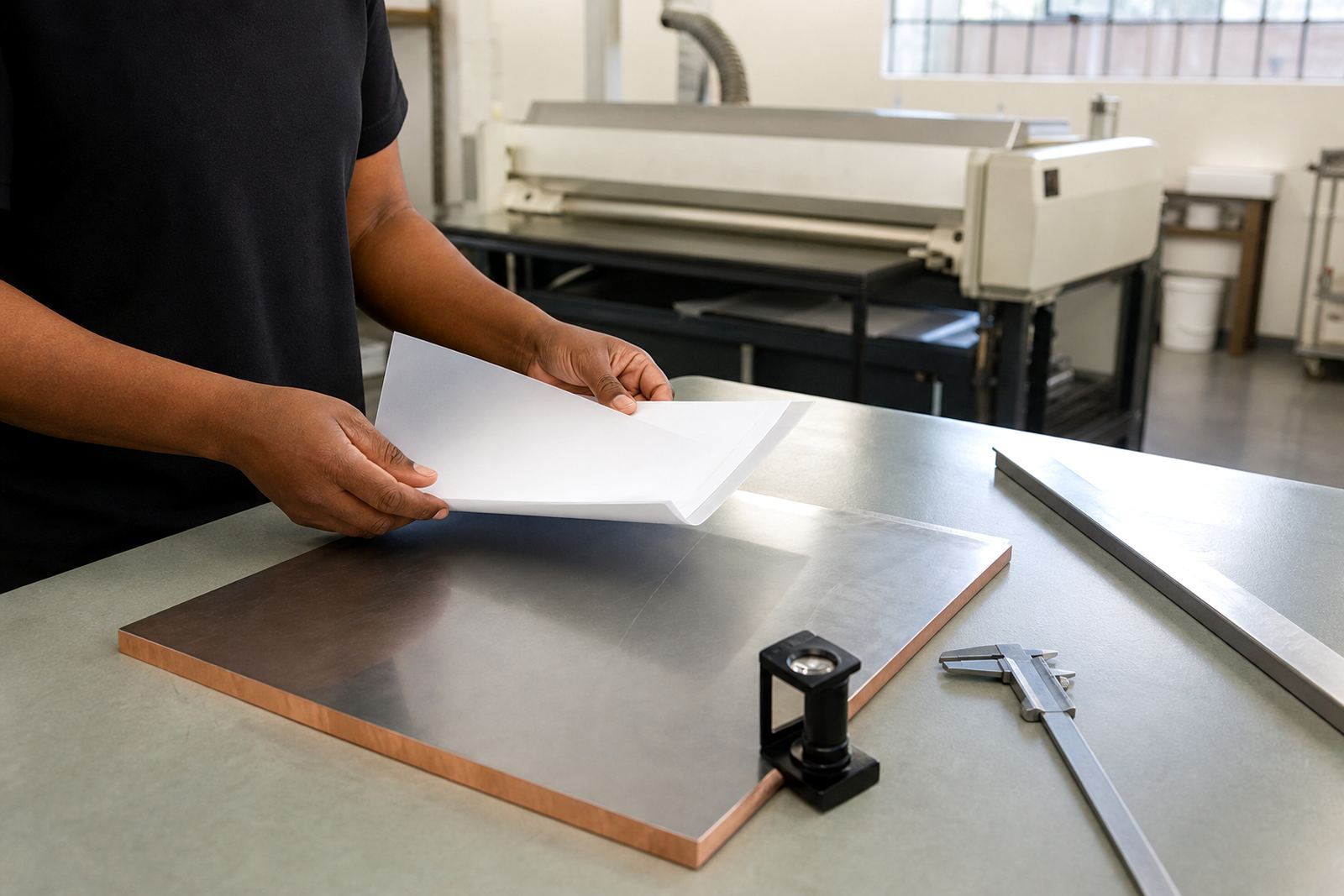
Start with the correct file version
Before you send anything, make sure the artwork is the final approved version. Check that all text, artwork and barcodes are up to date, and that no old notes or hidden elements remain in the file. If the design changed after approval, send the updated file clearly marked so the right version is used for plate making.
Use one job name across all files and communication. That small step helps when a production team is handling multiple label or packaging jobs at once, especially where repeat orders, variants and language changes are involved.
- Confirm the final artwork name and revision.
- Remove draft pages, old layers and unused elements.
- Keep the supplied file and any reference PDF together.
Check dimensions, bleed and trims
Artwork must match the finished size of the label or pack. Measure the live area carefully and confirm any bleed needed beyond the trim line. If the file is too small, too tight or set to the wrong size, the plate can only reproduce what is supplied, so the job may need correction before production can move ahead.
For work that wraps around cartons, sleeves or pouches, watch for fold lines, glue areas and any panel that must stay free of text. In flexo work, a few millimetres can matter, especially on narrow labels or short repeats.
- Confirm finished size and repeat length.
- Include bleed where artwork runs to the edge.
- Keep important text away from trim, folds and seals.
Make sure text is ready for reproduction
Small text can lose clarity if it is too light, too thin or set too close together. Check spelling line by line and keep an eye on product names, ingredients, directions and legal notices. Once plate production starts, a typo in the file can be carried through to print.
Convert fonts to outlines where required and avoid using uncommon typefaces that may not transfer properly. If there are reversed words, fine rules or text on coloured blocks, it is worth checking them on screen and again in a PDF proof before release.
- Proofread all copy carefully.
- Outline fonts or supply the correct font files where needed.
- Avoid very small text unless it has been checked for print suitability.
Prepare colours and linked images correctly
Colour setup has a direct effect on how the plate artwork is separated and reproduced. Use the correct colour mode for print and keep spot colours named consistently. If artwork includes tints, gradients or images, make sure they are supplied at suitable resolution and are not stretched or compressed in the wrong way.
Linked images should be embedded or supplied with the file pack if requested. Low-resolution images often look acceptable on screen but print poorly, especially on larger packaging panels or close-view labels. It also helps to avoid mixing file versions from different software unless everything is checked carefully.
- Use the correct colour setup for the job.
- Keep spot colour names consistent across files.
- Supply clean, high-resolution images and logos.
Confirm overprint, knockouts and special elements
Some artwork depends on overprint settings, knockouts, varnish areas or white ink preparation. If these details are wrong, the plate may not behave as expected on press. This is important for dark substrates, metallic materials and labels where white underprinting is needed for colour accuracy.
Barcodes, small borders and fine reverse text should be checked closely. It is also worth confirming any security marks, varnish windows or cut-line references before release. If the job includes multiple versions, each one should be separated and named properly so there is no mix-up during plate making.
- Check overprint and knockout settings.
- Mark varnish, white, die-cut and special areas clearly.
- Separate each version or language file where applicable.
Include a clear proof and job notes
Send a PDF proof with the artwork so the team can compare what you approved against the file supplied. Add simple notes for anything unusual such as a changed panel, special repeat, multiple up layout or an existing plate remake. That saves time and reduces back-and-forth on jobs coming through Midrand and from other areas across South Africa.
If the job has a history of past issues, mention them up front. For example, if a label must match an older batch or if the client has a strict layout to follow, say so in the notes. Clear instructions are easier to work with than a long message trail after the file has already been prepared.
- Attach a final PDF proof for comparison.
- Add notes for remakes, repeats or version changes.
- Flag any known print issues before production starts.
Send the job details with the artwork
Artwork files work best when they arrive with the practical job details attached. Include substrate type, plate size if known, number of versions, quantity needed and whether the job is for labels or packaging. If the delivery needs to go to Johannesburg, Pretoria, Durban, Cape Town or Gqeberha, make that clear so dispatch can be arranged properly.
For clients dealing with tight production schedules or local courier collections, it also helps to state the contact person and preferred delivery point. In Gauteng, coastal humidity, dusty conditions and load-shedding can affect the wider production flow, so neat job information helps keep the plate side organised even when the rest of the day is busy.
- State substrate, quantity and job type.
- Confirm delivery area or collection requirements.
- List the person handling sign-off and queries.